

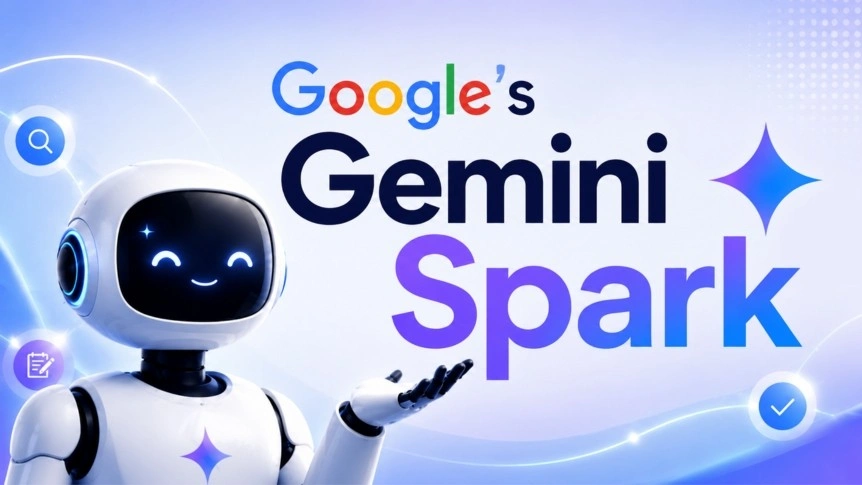
Google has officially rolled out one of its most powerful workspace upgrades yet: Google Gemini Spark. Designed to shift AI from a simple interactive chat box into a true 24/7 autonomous AI agent, Gemini Spark handles multi-step tasks in the background, working even when your phone or laptop is turned off.
Whether you are looking to declutter your inbox, automate deep research, or coordinate complex schedules, this latest update redefines personal and professional productivity. Here is everything you need to know about the new features, underlying facts, and how to get started.
Key Highlights of the Latest Google Gemini Spark Update
The updated version of Gemini Spark brings massive under-the-hood and functional improvements designed to make agent-based workflows faster and smoother:
- Blazing-Fast Performance: Optimized workspace loading times, quicker AI response rates, and faster execution of multi-step workflows.
- Persistent Workspaces: Projects retain context, files, uploaded prompts, and configurations across different sessions to ensure seamless continuity.
- Agentic AI Workflows: AI agents can independently plan, coordinate, and execute long-form tasks with minimal user input.
- Model Context Protocol (MCP) Support: Enables secure integration with third-party applications and custom services via MCP server URLs.
- Deeper Google Workspace Integration: Native cross-app functionality allowing Spark to read, draft, and modify files across Gmail, Google Docs, Sheets, Slides, Drive, Calendar, Keep, and Tasks.
What Can Google Gemini Spark Do? (Core Features & Use Cases)
- Autonomous Background Execution: Give Spark a complex task (like finding interior design internships or tracking market news) and it will run in the background, reviewing sources in parallel for fast processing.
- Smart Inbox & Subscription Management: Automatically summarize newsletters, archive promotional emails, surface pending invoices, and unsubscribe from unwanted mailing lists.
- Advanced Document and Presentation Edits: Spark can now edit shared documents, spreadsheets, and presentations, read comments on Google Docs, and insert images directly where needed using the Canvas panel.
- Custom Schedules & Skills: Set automated triggers (e.g., “Every Monday at 9:00 AM, scan my inbox and provide a prioritized to-do list” or monitor topics across news, finance, and sports). You can also train Spark to learn your unique writing style to draft emails using custom “Skills”.
Who Can Access Gemini Spark?
To use Gemini Spark, you must meet the following baseline requirements:
- Age: Must be 18 years or older.
- Account Type: Must sign in with a personal Google Account (currently unavailable for standard Workspace work/school accounts).
- Subscription: Requires a qualifying Google AI subscription (Google AI Pro or Ultra depending on your region).
- Activity Settings: Must have Gemini Apps Activity turned on.
Step-by-Step Guide: How to Use Gemini Spark on Your Smartphone & Web
If you have access to Gemini Spark through your subscription tier, you can set up your first agentic workflow by following these steps:
Step 1: Open Gemini Spark
- Open the Gemini mobile app on your Android/iOS device or navigate to gemini.google.com on your browser.
- Tap the Menu icon at the top of the screen.
- Select Spark.
Step 2: Describe Your Task & Set Conditions
- In the text box, clearly describe the task you want Gemini to manage.
- To set an automated trigger, specify when you want it to run (e.g., “Every day at 8:00 AM” or “When my flight is delayed”).
- If you want to use a specific custom skill, type
/and select your pre-configured skill.
Step 3: Connect Apps & Upload Files
- Tap Upload & tools to attach reference files or documents.
- Ensure your Google Connected Apps (like Gmail, Drive, or Calendar) are toggled on in your settings so Spark can interact directly with your digital workspace.
Step 4: Review and Confirm Actions
For security and privacy, Gemini Spark is designed to ask for your confirmation before executing high-impact actions, such as sending emails, modifying critical data, or making purchases. You can review all ongoing tasks through the task thread’s progress panel anytime!
Also read, What Is UPI? Everything You Need to Know About India’s Payment System in 2026
Watch Latest News Videos on KRH News: Click Here